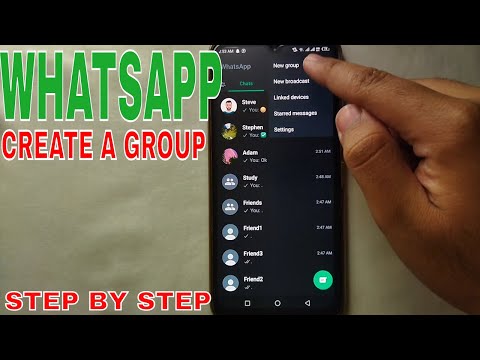
Ever wanted to round up your friends for a weekend hike or your team for a project check-in but didn’t know how to make a WhatsApp group? Don’t worry—creating a group on WhatsApp is straightforward, and I’ll walk you through all the ways to do it, plus some pro tips to make your group run smoothly. This article covers everything from basic mobile setups to using WhatsApp web for easier management, so you can get your group up and running in no time.
Create a Group Directly From Your Chat List (mobile)
If you’re on your phone and want to start a group quickly, this method is your go-to. It’s the most intuitive way for most users, as it’s right where you normally start new chats.
For Android Devices
Tap the new chat icon: On your Android phone, open WhatsApp and look for the green chat bubble with a plus sign at the bottom right corner. Tap it—this opens the menu where you can start a new chat or group. This is the same button you use to message a single contact, so it’s easy to find. Select “New Group”: From the options that pop up (New Chat, New Group, New Broadcast), choose “New Group”. This takes you to the contact selection screen where you can pick who to add. Add members and name: Scroll through your contacts or search for specific people to include. Once you’ve selected everyone you want, tap the arrow at the top right. Next, type a clear group name (like “Weekend Hike Crew”) and optionally add a group icon. Tap “Create”—your group is ready.
For iOS Devices
Tap the new chat button: Open WhatsApp on your iPhone, then tap the pencil icon at the top right. This brings up the new chat options, including starting a group. Choose “New Group”: From the list of options, select “New Group”. Now you can browse your contacts to add members. Set name and confirm: After selecting your contacts, tap “Next”. Enter a group name (feel free to add emojis, like 🎉 Book Club) and tap “Create”. That’s it—your group is live.
Last month, I helped my mom create a group for her neighborhood book club using this method. She found it super easy because it’s similar to how she messages her friends one-on-one. Within five minutes, she had all 12 members added and the first meeting date announced.
Use the Contacts Menu to Form a Group (mobile)
If you prefer to start from your contacts list instead of the chat screen, this method works well. It’s great if you want to select multiple contacts without switching between screens.
From the Contacts Tab
Open the contacts tab: On Android, tap the “Contacts” icon at the bottom of the WhatsApp screen. On iOS, tap the “Chats” tab then the “Contacts” button at the top. Select multiple contacts: Long-press on the first contact you want to add to the group. Then, tap on other contacts to select them (you’ll see a checkmark next to each selected contact). Create the group: Once you’ve selected all members, tap the three dots at the top right (Android) or the “Create Group” button (iOS). Enter a group name and tap “Create”.
Using Multi-Select in Contacts
Open WhatsApp contacts: Go to your WhatsApp contacts list as before. Activate multi-select: On Android, tap the three dots at the top right and choose “Select contacts”. On iOS, long-press a contact to start multi-select. Add to group: After selecting your contacts, tap the “New Group” button. Name the group and confirm.
This method is perfect for when you know exactly which contacts you want to include—no scrolling through chat history needed. I used this once to create a group for my college friends reunion; I could quickly pick all 20 people from my contacts list without missing anyone.
Turn an Existing Chat Into a Group (mobile)
Did you start a one-on-one chat with someone and realize you need to add more people? You don’t have to create a new group—just convert the existing chat into one.
Adding More People to a 1:1 Chat
Open the chat: Go to the one-on-one chat you want to turn into a group. Access chat info: Tap the contact’s name at the top of the screen to open the chat info page. Add participants: Scroll down to the “Add participants” option and tap it. Select the additional contacts you want to add, then tap “Add”. The chat will automatically turn into a group.
Converting a Broadcast List to Group
Open your broadcast list: Go to WhatsApp’s broadcast list section (on Android, tap the three dots then “New Broadcast”; on iOS, tap “Broadcast Lists” in the chats tab). Select the broadcast list: Choose the broadcast list you want to convert into a group. Turn into group: Tap the three dots at the top right and select “Turn into group chat”. Confirm the action, and your broadcast list becomes a group where everyone can interact.
This is a time-saver if you already have a list of people you regularly message. I used this when I wanted to turn my weekly newsletter broadcast into a discussion group—all my subscribers were already in the list, so converting it took seconds.
Make a Group via WhatsApp Web (desktop)
If you prefer typing on a keyboard or managing groups from your computer, creating a group via WhatsApp web (https://www.logws-whatsapp.com) is a great option. It’s especially useful for work groups where you need to type long messages or share files from your desktop.
Step-by-Step on WhatsApp Web
Open WhatsApp web: On your computer, go to the WhatsApp web site and scan the QR code with your phone (open WhatsApp on your phone, tap the three dots then “WhatsApp Web” to scan). Start a new group: Click the three dots at the top right of the WhatsApp web screen and select “New Group”. Add members and name: Search for contacts using the search bar (typing is faster on a keyboard) and select them. Then, enter a group name and click “Create”.
Tips for Desktop Group Creation
Use keyboard shortcuts: WhatsApp web has shortcuts like Ctrl+N (Windows) or Cmd+N (Mac) to start a new group quickly. Share files easily: Drag and drop files from your computer into the group chat to share documents, images, or videos—no need to transfer them to your phone first.
I use this method for my work project groups. Typing meeting agendas and sharing spreadsheets is way easier on my laptop than my phone. Plus, I can keep the group open in a browser tab while I work, so I don’t miss any updates.
Invite Others to Join Your Group Easily (any device)
Once you’ve created a group, you might want to add people who aren’t in your contact list or make it easy for others to join without you having to add them manually.
Using Group Invite Links
Open group info: Go to the group chat and tap the group name to open the info page. Generate invite link: Scroll down to the “Invite via link” option and tap it. You can copy the link or share it directly via email, text, or social media. Customize link settings: You can set the link to expire after a certain time (like 1 day) or revoke it if you no longer want people to join.
Sharing QR Codes for Group Access
Open group info: Go to the group info page as before. Generate QR code: Tap “Invite via QR code” (this option is available on both mobile and web). Share the QR code: Save the QR code or share it directly. Anyone who scans the code with their phone can join the group instantly.
According to WhatsApp’s official help center (https://faq.whatsapp.com/general/groups/how-to-invite-someone-to-join-a-whatsapp-group/?lang=ennofollow), these methods are the safest way to add people to your group without sharing your contact list. I used the QR code method for my local farmers market group—vendors could scan the code at the market and join right away, which was super convenient.
WhatsApp web常见问题解答
Can I create a WhatsApp group using WhatsApp web alone?
Yes, you can create a WhatsApp group directly using WhatsApp web, but there’s a small caveat: you need to have your phone connected to the internet for WhatsApp web to work. Here’s how it works: When you open WhatsApp web on your desktop, you’re essentially mirroring your phone’s WhatsApp account. So any action you take on the web version syncs with your phone. To create a group via WhatsApp web, follow these steps: First, open WhatsApp web (make sure your phone is connected to Wi-Fi or mobile data). Then, click the three dots at the top right corner of the screen and select “New Group”. Next, search for and select the contacts you want to add to the group (you can type their names in the search bar to find them quickly). After selecting the contacts, click the arrow icon. Then, enter a group name and optionally add a group icon (you can upload an image from your computer). Finally, click “Create” to form the group. One thing to note is that if you’re using WhatsApp web on a public computer, make sure to log out after you’re done to keep your account secure. Also, some features like adding a group description might be easier on the mobile app, but the core group creation process works smoothly on the web version. I’ve used this method several times when I was working on my laptop and needed to create a group for a work project—typing the group name and searching for contacts on a keyboard was much faster than doing it on my phone.
Why can't I see the option to create a group on WhatsApp web?
There are a few common reasons why you might not see the option to create a group on WhatsApp web. Let’s break them down one by one. First, check if your WhatsApp web session is active and synced with your phone. If your phone is turned off, out of battery, or not connected to the internet, WhatsApp web won’t work properly—so the “New Group” option might not appear. To fix this, make sure your phone is on, connected to Wi-Fi or mobile data, and that WhatsApp is running in the background. Second, check if you’re using an outdated version of WhatsApp on your phone. Sometimes, older versions don’t support all the features of WhatsApp web, including group creation. To update WhatsApp, go to the App Store (iOS) or Google Play Store (Android) and install any available updates. Third, if you’re using a browser that’s not supported by WhatsApp web, you might encounter issues. WhatsApp web works best on Chrome, Firefox, Safari, or Edge. If you’re using a lesser-known browser, try switching to one of these. Fourth, clear your browser’s cache and cookies. Sometimes, cached data can cause glitches in WhatsApp web, including missing options. To do this, go to your browser’s settings, find the cache and cookies section, and clear them. I once had this problem when I was using an outdated version of Chrome—after updating the browser and my phone’s WhatsApp app, the “New Group” option appeared immediately.
Can I manage a WhatsApp group created on mobile using WhatsApp web?
Absolutely! Managing a WhatsApp group created on mobile using WhatsApp web is not only possible but also very convenient—亲测这个方法比较有效. Once you’ve created a group on your mobile device, you can access it on WhatsApp web and perform almost all the same management tasks. For example, you can add or remove members, change the group name or icon, set a group description, mute notifications, or even delete the group if needed. Let’s take adding members as an example: On WhatsApp web, open the group chat, click the group name at the top, then click “Add participants” and select the contacts you want to add. Similarly, to remove a member, go to the group info page, find the member you want to remove, click the three dots next to their name, and select “Remove from group”. Another useful feature is the ability to pin important messages in the group—this is easier to do on a desktop because you can see more of the chat history at once. I use this feature all the time for my book club group: I pin the meeting time and location so everyone can easily find it without scrolling through the chat. Also, if you need to send a long message or share a file (like a PDF or image) from your computer, WhatsApp web makes this much faster than using your phone. Just remember that any changes you make on WhatsApp web will sync with your mobile device, so you don’t have to worry about inconsistencies between the two.
If you try any of these methods to create a WhatsApp group, welcome back to tell me how it goes! I’d love to hear your experience or any tips you have for making group creation easier.