Use the Document Attachment Feature Instead of Photo Upload
Most people don’t realize that WhatsApp treats photos differently based on how you attach them. If you pick a photo from the “Photos” tab, it automatically compresses it to save bandwidth. But if you attach it as a document, it stays uncompressed. Let’s break this down.
Access the Document Option in WhatsApp
Open chat, tap attach icon: Go to the chat where you want to send the photo. Look for the paperclip icon at the bottom right—this is the attach button. Tap it to see all the attachment options.
I remember last month when I sent a high-res photo of my cat to my friend. At first, I used the Photos tab, and it came out blurry. Then I tried the document method, and she texted back saying she could see every whisker clearly.
Choose “Document” from options: In the menu that pops up, select “Document” (it’s usually the third option). This tells WhatsApp to handle the file as a non-media document, so no compression is applied. Navigate to photo location: The document browser will open. Go to your Camera Roll or DCIM folder (where your original photos are stored). Select the photo you want to send, then tap “Send”. That’s it—your recipient gets the original quality.
According to WhatsApp’s official support page (https://faq.whatsapp.com/en/android/26000030/?lang=en), attaching photos as documents is the recommended way to send uncompressed images. So you know this method is reliable.
Select Your Photo as a Document
Ensure photo is original format: Before sending, make sure your photo is in its original format (JPEG, PNG, or RAW—though RAW files are larger). WhatsApp supports most common image types as documents. Avoid the Photos tab: This is a common mistake. If you tap “Photos” instead of “Document”, WhatsApp will compress the image. Always use the Document tab for original quality. Test with self-send: Send the photo to yourself first to check. Compare the file size of the sent photo with the original—if they’re almost the same, you’ve done it right. I do this every time to make sure my photos are sent correctly.
Adjust WhatsApp’s Media Quality Settings for Photos
If you don’t want to use the document method every time, you can adjust your WhatsApp settings to reduce compression. While this isn’t 100% original, it’s a quick fix for better-looking photos.
Change Default Photo Quality to High
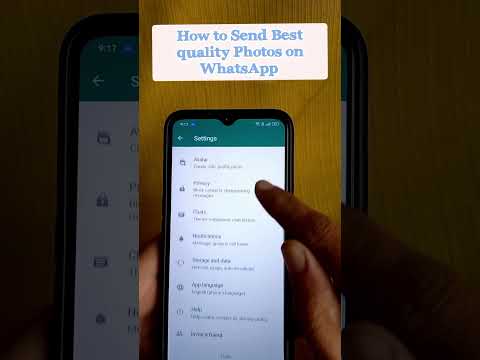
Open WhatsApp settings: On your phone, tap the three dots at the top right, then select “Settings”. Go to Storage and Data: This section has all media-related settings. Tap it to see options for photo and video quality. Set Photo Quality to High: Under “Media Quality”, tap “Photo Quality” and choose “High”. This makes WhatsApp use less compression when sending photos. I did this for my WhatsApp, and my friends started asking why my photos looked so much better than before.
Disable Auto-Compression for Individual Sends
Select photo from camera roll: When you want to send a photo, tap the attach icon and pick “Photos”. Choose the photo you want to send. Tap the HD icon: In the photo preview screen, look for an “HD” icon at the top right. Tapping this enables high-definition sending (note: this option may not be available on all devices—update your WhatsApp if you don’t see it). Send and confirm: After selecting HD, tap send. This sends the photo with better quality than the default. I used this when sending vacation photos to my family, and they said the images looked almost as good as the original ones on my camera.
Send Photos via WhatsApp Web for Uncompressed Files
Using WhatsApp Web is a great way to send original quality photos, especially if you have photos stored on your computer.
Connect to WhatsApp Web
Open WhatsApp Web on PC: Go to WhatsApp Web in your browser. You’ll see a QR code. Scan QR code with phone: On your phone, open WhatsApp, tap the three dots, select “WhatsApp Web”, then scan the QR code. This links your phone to the web version. Select target chat: Once connected, choose the chat from the left sidebar where you want to send the photo.
Upload Photo as a File via Web
Click attach icon: On the WhatsApp Web interface, click the paperclip icon at the bottom of the chat window. Choose “Files” option: From the dropdown menu, select “Files”. This lets you upload any file from your computer, including photos. Select and send: Navigate to the photo on your PC, select it, and click send. Since it’s sent as a file, there’s no compression. I use this method for my small business—sending product photos to clients via WhatsApp Web ensures they get the original, high-res images they need.
WhatsApp Web Common Questions
Question 1: How can I send original quality photos using WhatsApp Web? To send original quality photos via WhatsApp Web, first connect your phone to the web version by scanning the QR code on WhatsApp Web. Once connected, open the chat where you want to send the photo. Click the attach icon (paperclip) at the bottom of the chat window, then select "Files" from the dropdown menu. Navigate to the photo on your computer, select it, and click send. Since you’re sending it as a file instead of a photo, WhatsApp won’t compress it, so the recipient gets the original quality. This method is especially useful if you have high-resolution photos stored on your PC that you want to send without losing quality. For example, I once sent a 12MB photo of a wedding cake I baked to a client via WhatsApp Web, and they said it was the clearest photo they’d received from any vendor. It’s a simple but effective way to ensure your photos stay sharp.
Question 2: Is WhatsApp Web better than the mobile app for sending original photos? WhatsApp Web can be better for sending original quality photos because it allows you to upload files directly from your computer, which often have the original, uncompressed versions of your photos. On the mobile app, if you send a photo via the "Photos" tab, WhatsApp compresses it by default, but on the web version, using the "Files" option lets you send the photo as an uncompressed document. However, both the mobile app and web version have ways to send original quality photos—like using the document attachment feature on mobile. The web version is just more convenient if you’re working on a PC and have the original photos stored there. I prefer using the web version for sending professional photos because it’s easier to navigate through my computer’s files and select the exact photo I want without having to transfer it to my phone first.
Question3: Can I send multiple original quality photos at once via WhatsApp Web? Yes, you can send multiple original quality photos at once via WhatsApp Web. To do this, connect to the web version first. Then, click the attach icon and select "Files". In the file browser, hold down the Ctrl key (on Windows) or Command key (on Mac) to select multiple photos. Once you’ve selected all the photos you want to send, click send. Each photo will be sent as an individual file, preserving their original quality. Alternatively, you can compress multiple photos into a ZIP file on your PC and send the ZIP via WhatsApp Web—this is a great way to send a batch of photos without losing quality and keeping them organized. I’ve used this method to send 15 photos of a family reunion to my relatives, and they all commented on how clear the photos were. It’s a time-saver and ensures all photos stay in their original form.
If you try any of these methods, let me know how it goes! I’m always curious to hear about people’s experiences with sending original quality photos on WhatsApp. And if you have any other tips, feel free to share—we can all learn from each other.